Your competitor just won a $5 million federal contract. You saw the announcement. Now you need the details. Who awarded it? What did they pay? When does the work start? The information is public, but most people cannot find it.
Knowing who wins contracts helps you track your competitors, see what agencies are buying, and find new business opportunities. When you see the same company winning contracts from an agency, you can study what they do and use similar strategies.
In this article, you will learn about where to search, and how to find who won the government contract.
Where to Search Government Contract Winners
Three official websites track federal contract awards. Each one serves a different purpose.
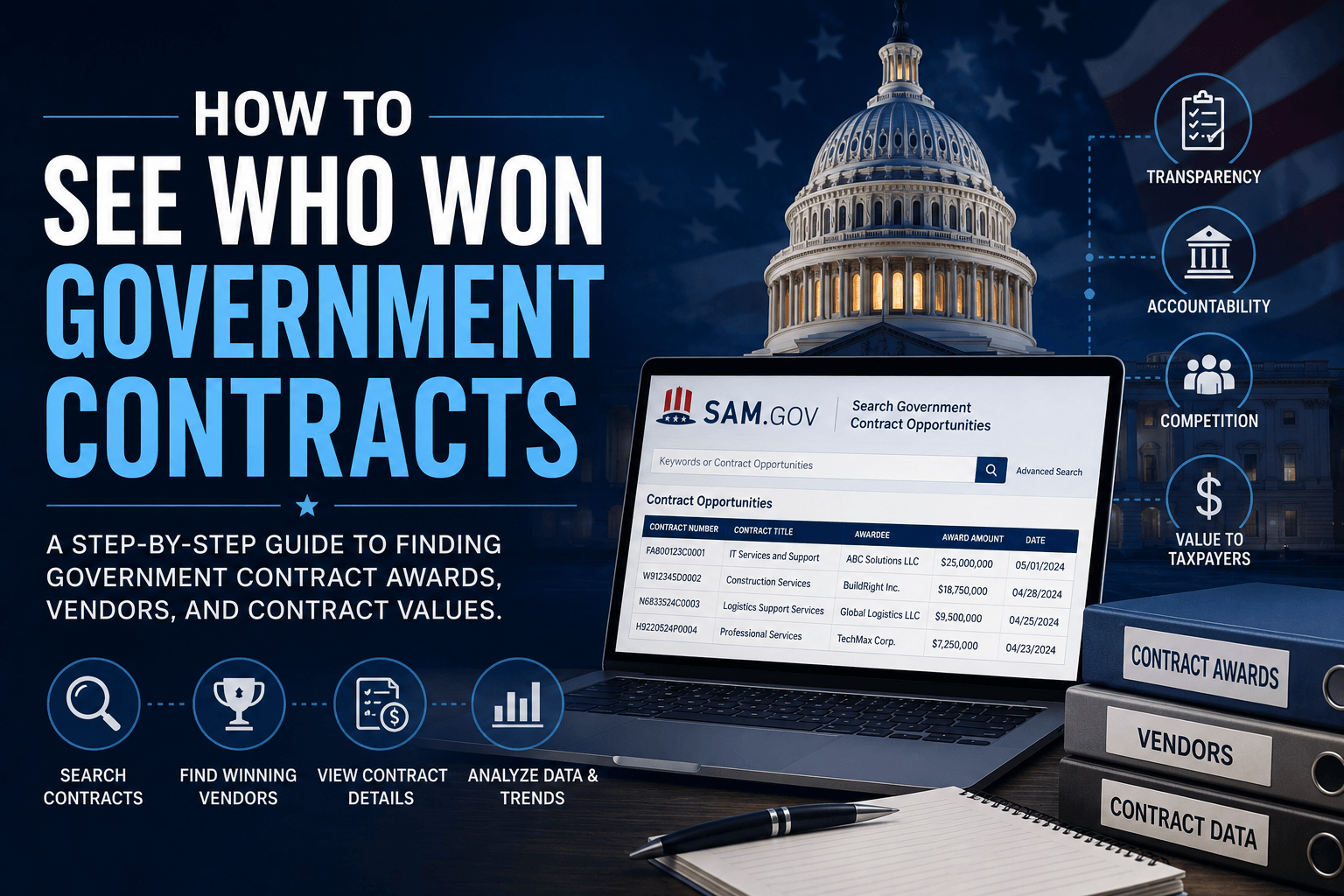
SAM.gov
SAM.gov is the main contract award search site. It replaced FedBizOpps and FPDS-NG in 2019. Use SAM.gov when you want to search by company name, agency, or contract type. The site updates every day with new awards.
USA Spending
USAspending.gov gives you the most detailed spending data. It shows contracts, grants, loans, and payments. Use USA Spending when you need financial breakdowns or want to compare spending across multiple years. The data comes straight from agency systems.
How to Search Contract Winners on SAM.gov
Access the Search Page and Set Data Category
Go to the official SAM.gov Search page. You can search without creating an account, but some filters require a login.gov account.
On the left-hand sidebar, find the Data Category filter. Expand it and check the box for Contract Awards. This ensures you see completed awards instead of open opportunities.
Enter Your Search Terms
In the main search bar at the top, enter your search terms. You can search by:
- Company name (legal business name as registered in SAM.gov)
- DUNS number (for older records before April 2022)
- Unique Entity ID (UEI) for current records
- Contract description or product keywords
Apply Filters to Narrow Results
Filter by Federal Agency using the left sidebar menu. Click the agency filter and select specific departments like the Department of Defense, Department of Health and Human Services, or General Services Administration. This narrows results to one agency.
Set the Award Date range using the date filter on the left. The default shows recent awards only. Select a custom date range to see awards from specific months or years. For 2026 transactions, set the date range from January 1, 2026 to the current date.
Add NAICS Code filters if you want to see awards in specific industries. Construction is 236000. IT services is 541500. Professional services are 54xxxx
Set Place of Performance filters to see awards for work in specific states or regions.
View and Download Results
Click Search or press Enter. Results appear as a list showing contractor name, award amount, awarding agency, and award date.
Click any result to open the full award details. The detail page shows:
- Awarded dollar value
- Contracting office and contact information
- Period of performance (start and end dates)
- Vendor’s legal business name and UEI
- Contract type and NAICS code
- Place of performance location
Download results by clicking the Export button at the top right. Choose CSV or Excel format. The exported file includes all visible data fields from your search.
How to Search Contract Winners on USAspending.gov
USAspending.gov offers two search methods: Quick Search for simple lookups and Advanced Search for detailed filtering.
Quick Search Method
- Go to the USAspending Keyword Search tool. This is the fastest way to find basic contract information.
- Enter a company name, vendor name, or project keyword in the search bar. Press Enter or click Search.
- The results table shows awarded contracts with contract IDs, amounts, agencies, and dates. Click any contract ID (formatted as CONT_AWD_…) to see full details.
- Use this method when you know the company name or have a specific keyword and need quick results.
Advanced Search Method (Recommended for Detailed Research)
Go to the USAspending Advanced Search page. This gives you complete control over filters.
Set Award Type to Contracts
In the Award Type section, select Contracts. This excludes grants, loans, and other spending types from your results. Leave Contracts as the only checked option unless you want to see all federal spending.
Choose Your Time Period
Select fiscal year, calendar year, or custom dates. Federal fiscal year runs October 1 through September 30. Most contract data is organized by fiscal year. You can select multiple fiscal years to see trends over time.
Filter by Recipient (Optional)
Use the Recipient filter to search for specific companies. Type the company name and select from the dropdown. You can also leave this blank to see all top recipients in your other filter criteria.
Select Awarding Agency (Optional)
Filter by department or sub-agency. Examples include Department of Defense, Department of Health and Human Services, or specific offices within those departments. USAspending.gov shows the full agency hierarchy.
Add Location and Industry Filters (Optional)
Use Product and Service Codes (PSCs) to filter by what was purchased. Use geographical filters to search by state, county, or congressional district where work is performed.
View Search Results and Contract Details
Click the Search Award button at the bottom. Results appear showing contract winners, total obligated amounts, award dates, and awarding agencies.
You can also view contract details in USAspending by clicking any contract ID. The detail page shows:
- Total contract value and obligated amount
- Transaction history with all modifications
- Funding agencies and budget details
- Period of performance dates
- Prime contractor information with UEI
- Sub-awards to other companies (if any)
- Place of performance location
- Contract type and NAICS code
How to Track One Company’s Contract Wins
Company names change slightly between records because of subsidiaries, DBAs, or data entry errors. Use the UEI for consistent tracking.
Find the Company’s Unique Entity ID (UEI)
Go to SAM.gov Search. Enter the company name in the main search bar. Do not check any Data Category filters, leave them blank to search entity registrations. The entity record shows the official UEI. Copy this number.
Search for All Contracts Using the UEI
On SAM.gov, check Contract Awards under Data Category, and paste the UEI in the main search bar. This returns all contracts for that entity regardless of name variations.
On USAspending.gov, go to the Advanced Search page. Set Award Type to Contracts. In the Recipient filter, paste the UEI. Click Search Award. This returns every contract for that entity.
Track Companies With Subsidiaries
For companies with subsidiaries, check the parent company’s UEI in SAM.gov. Parent-child relationships appear in entity details. You may need to search the parent UEI and each subsidiary UEI separately.
Analyze Contract History Over Time
To see contract history over time, use date filters covering multiple years. Sort results by date descending to see recent contracts first. Look for patterns in contract types, agencies, and dollar amounts.
Set Up Manual Tracking or Use Third-Party Tools
Neither system sends email alerts for new awards to specific companies. You must search manually. Bookmark your filtered search URLs to repeat searches quickly.
Third-party tools like GovWin IQ, Deltek, and Bloomberg Government offer email alerts and competitive intelligence. These pull from the same federal data but add automated tracking. All require paid subscriptions.
Common Mistakes When Searching
Knowing what goes wrong helps you avoid wasted time and find contract winners faster. These are the most frequent errors people make when searching government contract databases.
Not Selecting the Correct Data Category
On SAM.gov, you must check Contract Awards under Data Category on the left sidebar. Without this filter, your search returns entity registrations, wage determinations, and open opportunities instead of awarded contracts.
On USAspending.gov, always set Award Type to Contracts. Leaving this unselected returns grants, loans, and all other federal spending types, burying contract results under thousands of irrelevant records.
Using Incorrect Time Ranges
The default date filter on SAM.gov shows only the last 30 days. Always expand the date range to cover your full research period. On USAspending.gov, select multiple fiscal years to see trends over time.
Searching With Inaccurate Company Names
Federal databases use exact registered names from SAM.gov. “ABC Company” and “ABC Company LLC” are different entities. If your search returns nothing, try searching with part of the name or use the Unique Entity ID (UEI) instead.
Misunderstanding Financial Figures
The obligated amount is what the government committed now. The potential value includes future option years that may not be funded. A contract showing $500,000 obligated but $2 million potential value means only $500,000 is committed. The additional $1.5 million is optional.
Using Overly Specific Classification Codes
NAICS codes work at different levels. Filtering by a six-digit code excludes related codes in the same sector. Start with two-digit sector codes, then narrow down to six digits after reviewing initial results.
Overlooking Contract Modifications
A contract awarded years ago might still be active through modifications. On USAspending.gov, click the contract ID to view the transaction history. Check the most recent modification date, not just the original award date.
Searching Too Soon After Announcements
Contract data typically appears within 24 hours of the award, but complex contracts may take up to 48 hours. If you search immediately after a press release, wait one business day and search again if the record appears incomplete.